Before child support payments may be scheduled, you must retrieve
the employee records containing child support case information and
add them to the iPayOnline account.
Employee records may be retrieved by:
1.
Retrieving an employee from the central child support database by
entering the employee's social security number along with the case
or participant number.
2.
Importing employee records from prior payment history associated
with the employer FEIN if it exists.
3.
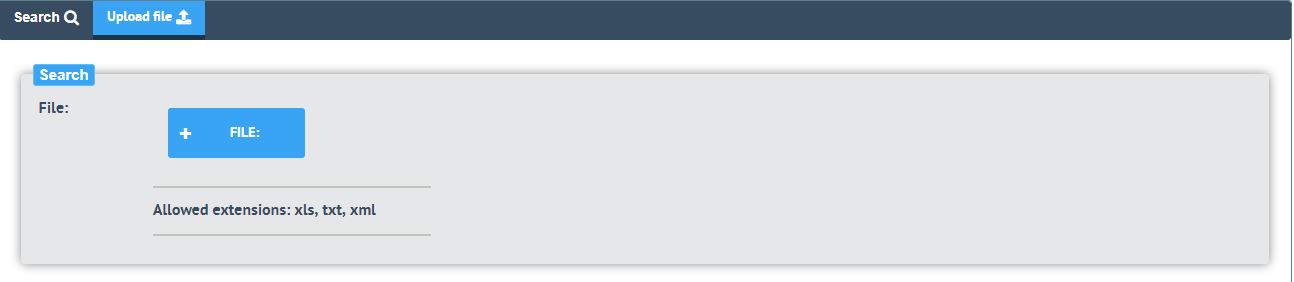
Uploading employee records from a predefined text (.txt), Excel
(.xls), or XML (.xml) file formats.
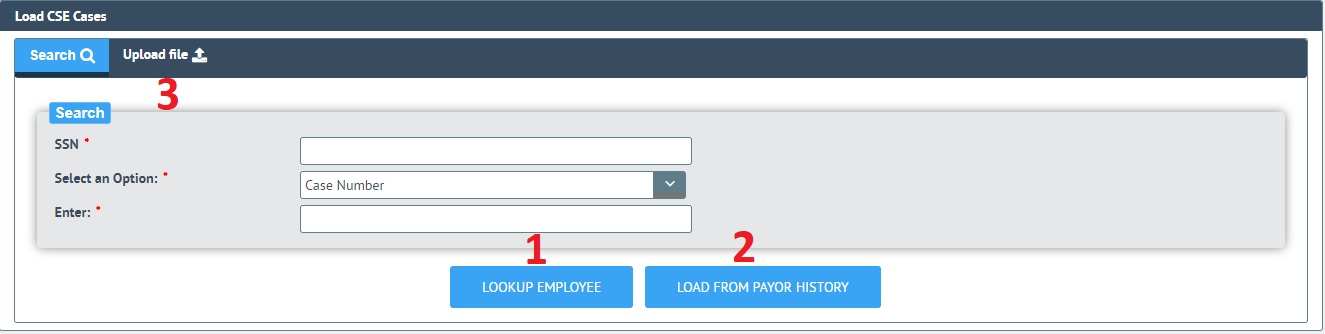
By default, each case retrieved will automatically be selected for
adding unless it already exists within your iPayOnline account. You must de-select those that you
do not want to add to your iPayOnline account.
Three fields that are unique to employer
users are:
*
Division - employee records
are able to be divided up into Divisions , which are maintained
within iPayOnline. If you
have more than one division, adding the employee records to the
proper division is important since you will make changes to employee
case information and schedule payments based on the selected
division. An employee may
exist in more than one division.
*
Termination Date - the date
that employment ended or will end for the employee. When you enter a termination
date, all employee case records and Pending scheduled payments are
removed on that date. This
information is removed from all divisions that employee resides in. This notifies the agency the
employee is not longer working with the employer. Payments that have already been
submitted to the bank for payment will continue to be processed. When a termination date is
entered, it must be within 30 days of the current date.
*
Medical Insurance Avaliable
- this checkbox is to be selected when the employer offers medical
insurance to the employee as part of the employment compensation. By selecting the box, the
employer is notifying the agency that if employee is ordered to
provide medical coverage, that is avaliable through the employer.
The pages that display after employee case records are added will
not include a Division column if only the default Main Division
exists. The illustrations
that follow are examples with multiple divisions defined.
To Search for and
Add a Valid Case:
Tips before Starting
*
Know the division of the employee and select it before adding.
*
Know if the employee is ordered to provide medical support for the
child(ren) and whether or not he/she is currently providing it.
1.
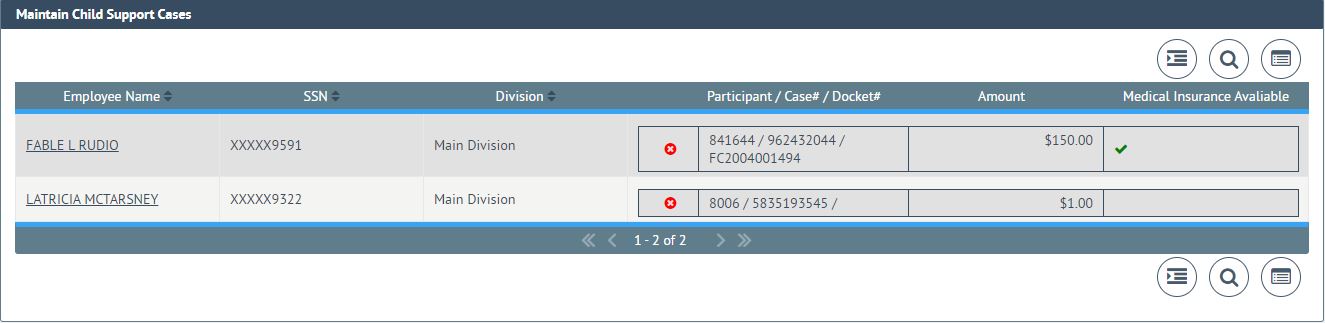
Select Maintain Child
Support Cases from the iPayOnline main menu.
2.
Click on  shown
in the initial screen for maintaining child support cases.
shown
in the initial screen for maintaining child support cases.
3.
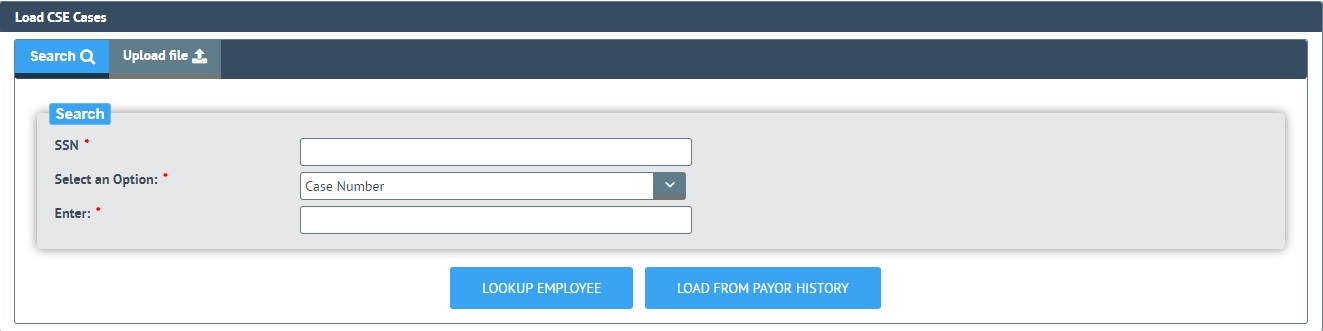
Enter the employee's social security number and the participant or
case number of the child support case. Both entries are required. If more than one case exists for
the employee, entering any one of the participant/case numbers will
retrieve all others.
4.
Click  . A list of child support cases
belonging to the employee will display for your review and
selection.
. A list of child support cases
belonging to the employee will display for your review and
selection.
5.
Choose the Division from the drop-down list. If a new Division is desired,
refer to the Add a Division section.
Note: The Division column will be blank
for the employee case record unless this case already exists as an
iPayOnline case in the selected division or in another division.
6.
Un-check any listed case that you do not want to add.
Note: If the case is not checked when
it is first retrieved, it already exists in your iPayOnline account. The division(s) the existing case
belongs to is listed in the Division column. Refer to the When Adding an
Existing Employee Record section.
7.
Enter the Amount of
child support that is due for each employee case record you have
selected to add. A case
cannot be added with a zero amount.
Note: If you are
withholding payments for an employee who is a participant in
multiple cases, State and Federal requirements may modify the
allocation of the payment among the employee's cases.
8.
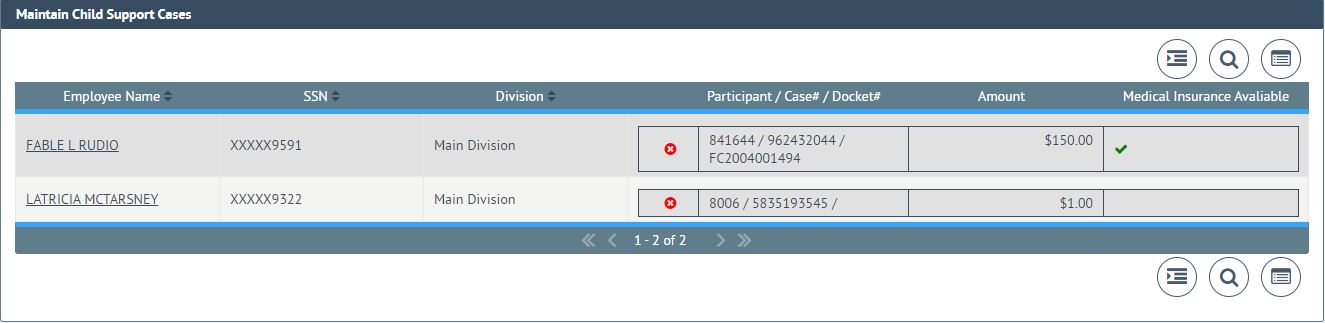
Click  and a list
will display with the added case(s).
and a list
will display with the added case(s).
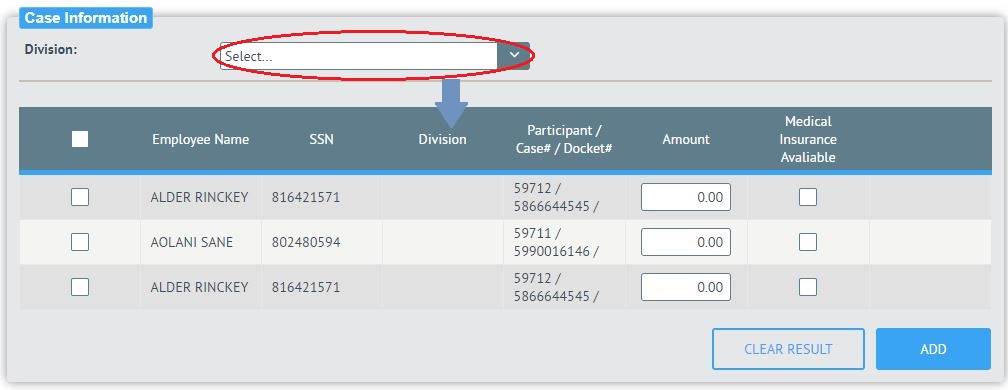
Note: If you only have one division
defined, a division column will not display in the Cases List.
9.
If you have more than one division, it is recommended to verify
the division for the employee and change it, if applicable. This is done by selecting a
division from the drop-down list.
This can also be done at a later time.
10.
You may make entries in the following fields at this time, if
applicable, or you may return to edit at a later time.
*
Medical Insurance Avaliable - check this box if the employee has
medical insurance avaliable to them and child(ren).
*
Termination Date - enter the date employment will end in
MM/DD/CCYY format. The date
must be within 30 days of the current date. The employee's case records and
Pending scheduled payments will be removed from all divisions on
this date.
11.
Repeat the process to add additional cases, starting with step 2.
To Load a File from Payor
Payment History:
When an employee file is loaded into iPayOnline from history, the
employee records are first listed in the currently selected division
for the opportunity to review and add only the desired records. Once the records are added to the
currently selected division, the division may be changed for each
employee individually if more than one division exists.
Records in the loaded file that already exist within one or more
divisions will be differentiated in the retrieved list by listing
the divisions they are classified with. In addition, records that already
exist in your iPayOnline account will not be automatically selected
for adding. Refer to the When
Adding an Existing Employee Record section.
Tips before Starting
*
Select the division with the largest number of employees so less
division changes will be required after adding the retrieved
records.
*
Know the division that each employee should belong to and change
to this division as soon as the records are added to the Cases List.
*
Know the child support amount that is due for each employee case
record.
*
Know if each employee has medical insurance for them and their
chil(dren) as part of their compensation package.
1.
Select Maintain Child
Support Cases from the iPayOnline main menu.
2.
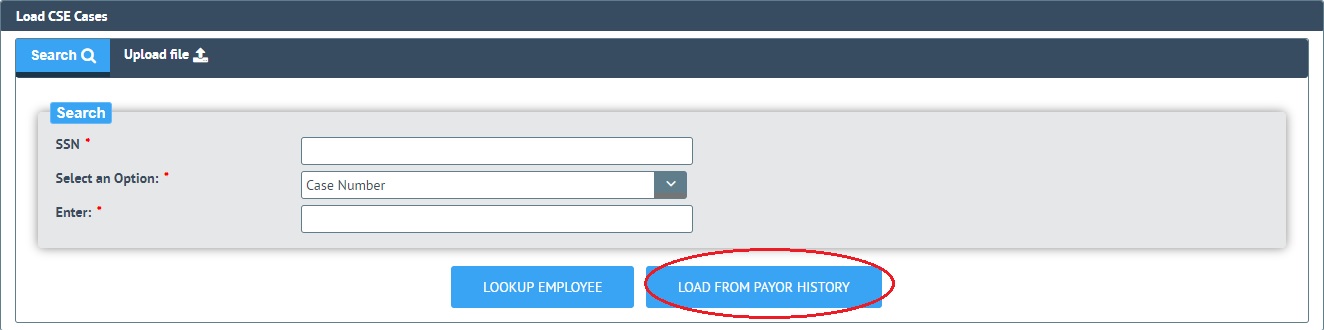
Click on shown
in the initial screen for maintaining child support cases.
3.
Click  . A list of
employee records will be loaded for review and selection for adding
into the iPayOnline account.
. A list of
employee records will be loaded for review and selection for adding
into the iPayOnline account.
4.
Choose the division from the drop-down list. If a new division is required,
refer to the Add a Division section.
Note: The Division column will be blank
for the employee case record unless this case already exists as an
iPayOnline case in the selected division or in another division.
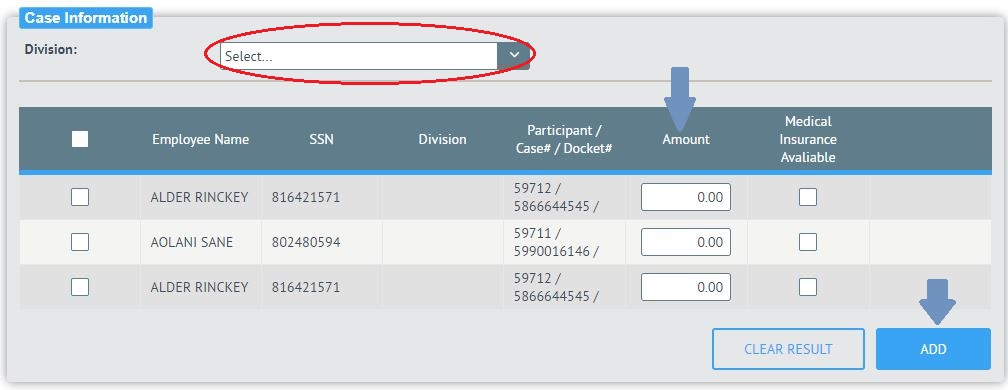
Note: Each record, or all at once, must
be selected for adding into iPayOnline when initially loaded. If the case is not checked when
it is first retrieved, the divisions the existing case belong to are
listed in the Division column.
Refer to the When Adding an Existing Employee Record section.
5.
De-select the desired employee records.
Tip:
Clicking the box next to the Employee
Name heading will toggle between selecting and deselecting ALL cases.

6.
It is recommended to change the employee's division at this time,
if applicable. This is done
by selecting one from the drop-down list. It can also be done at a later
time.
7.
You may make entries in the following fields at this time if
applicable, or you may return to edit at a later time. If you make any changes to the
added data, you must click Save
Changes.
*
Amount- this should be the amount due for child support for each
employee case record. The
amount that is retrieved and loaded from RAPID is the amount that
was applied to the child support payment at the time it was
processed in RAPID. This
amount may not be what is actually due.
*
Medical Insurance Avaliable - check this box if the employee has
medical insurance avaliable to them and child(ren).
*
Termination Date - enter the date employment will end in
MM/DD/CCYY format. The date
must be within 30 days of the current date. The employee's case records and
Pending scheduled payments will be removed from all divisions on
this date.
8.
Click . The selected employee records
will be added to the Cases List.
To Upload from a
Pre-defined File:
When a pre-defined employee payment file is uploaded into
iPayOnline, the employee case is first validated as an existing
case. All cases within the
file are validated and if a case is listed that is not found in the
central child support database, it will be reported after the upload
is completed.
All valid cases are first listed in the currently selected division
for the opportunity to review and to select only the desired cases
for adding. Once the records
are added to the currently selected division, the division may be
changed for each employee.
Records in the loaded file that already exist within one or more
divisions will be differentiated in the retrieved list by listing
the divisions they are classified with. In addition, records that already
exist in your iPayOnline account will not be automatically selected
for adding.
Tips before Starting
*
Select the division with the largest number of employees so less
division changes will be required after adding the retrieved
records.
*
Know the division that each employee should belong to and change
to this division as soon as the records are added to the Cases List.
*
Know the child support amount that is due for each employee case
record.
*
Know if each employee is ordered to provide medical support for
their child(ren) and whether or not he/she is currently providing
it.
1.
Select Maintain Child
Support Cases from the iPayOnline main menu.
2.
Click on shown
in the initial screen for maintaining child support cases.
3.
Click on  tab.
tab.
4.
Click on  and navigate
to the file, select it, and click
and navigate
to the file, select it, and click
5.
A list of employee case records is loaded for review and selection
for adding into your iPayOnline account. Case records failing validation
along with the reason for rejection are listed above the valid
cases.

Note: A record is automatically
selected for adding into iPayOnline when initially loaded if it is
not already a member of one or more divisions. If the case is not checked when
it is first retrieved, the divisions the existing case belong to are
listed in the Division column.
Refer to the When Adding an Existing Employee Record section.
7.
De-select the desired employee case records.
Tip:
*
Clicking the box next to the Employee Name heading will
toggle between selecting and deselecting ALL cases.

8.
It is recommended to change the employee's division at this time,
if applicable. This is done
by selecting one from the drop-down list. It can also be done at a later
time.
9.
You may make entries in the following fields at this time if
applicable, or you may return to edit at a later time.
*
Amount - this should be the amount due for child support for each
employee case record. The
amount that is retrieved and loaded from the pre-defined file may or
may not be what is actually due and should be confirmed.
*
Medical Support Provided - check this box if the employee has a
court order to provide medical coverage for his/her child(ren) and
are providing it.
*
Termination Date - enter the date employment ended or will end in
MM/DD/CCYY format. The date
must be within 30 days of the current date. The employee's case records and
Pending scheduled payments will be removed from all divisions on
this date.
10.
Click . The selected employee records are
added to the Cases List.